Google Business Profile Holiday Hours: How to Set Them Before Christmas and Avoid Missed Calls
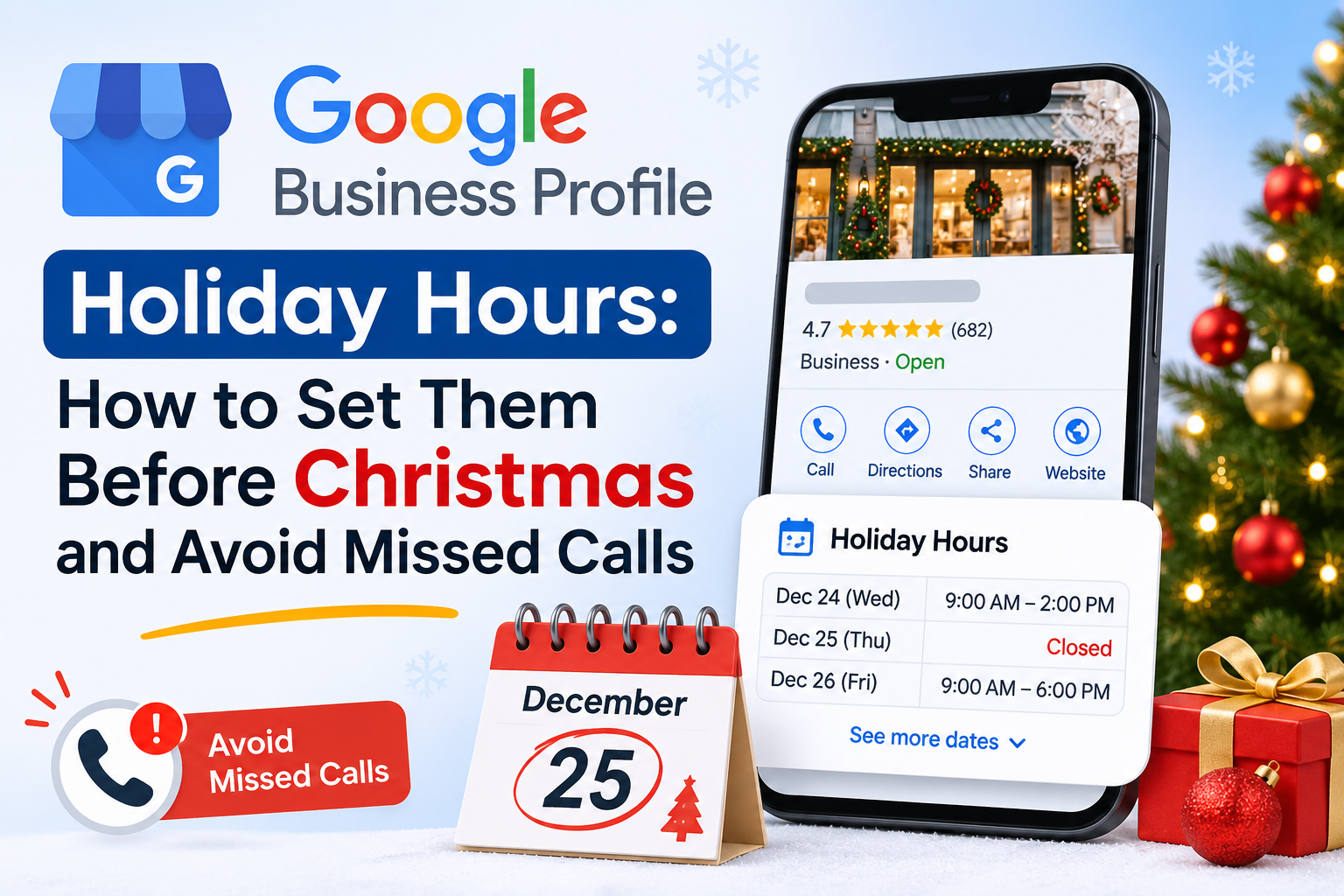
Imagine this: A customer searches for a nearby restaurant on Christmas Eve. Google shows that it’s open until 9 PM. They drive there, only to find the shutters down at 6 PM.
That’s one disappointed customer potentially leading to a negative review, too.
For local businesses, holiday schedules can get complicated. Christmas, New Year’s Eve, and New Year’s Day often mean shorter operating hours, staff changes, and temporary closures. But if your Google listing still displays your regular schedule, customers have no way of knowing.
This is where Google Business Profile holiday hours become important.
Updating your holiday schedule isn’t just an administrative task. It helps customers plan visits, reduces unnecessary calls, and keeps your local business information reliable when search activity increases during the festive season.
Here’s how to get it right before Christmas 2026.
Why Updating Google Business Holiday Hours Matters Before Christmas
Your Google Business Profile is often the first place customers check before visiting a local business. They look at your opening hours, phone number, directions, reviews, and available services.
Now consider a retail store that usually operates from 9 AM to 8 PM but closes at 4 PM on Christmas Eve. If its Google Business hours remain unchanged, customers may arrive after closing or call repeatedly to confirm availability.
The problem isn’t necessarily a lack of visibility. It’s inaccurate information at the point where customers are ready to take action.
A few updates can prevent this:
- Customers can check your actual Christmas and New Year operating hours.
- Your team receives fewer calls asking whether you’re open.
- Customers are less likely to make unnecessary trips.
- Your business provides a more consistent experience across Google Search and Maps.
Google recommends confirming special hours for official holidays, even when your business plans to follow its regular schedule. This helps customers understand that the displayed hours are accurate.
How to Add Holiday Hours to Google Business Before Christmas
You don’t need to change your regular weekly schedule to accommodate Christmas closures. Google provides a separate Special Hours feature for temporary changes.
Here’s how to change holiday hours on Google:
Step 1
Open your Google Business Profile
Sign in to the Google account associated with your business. Search for your business name on Google or access your profile through Google Search or Maps.
Step 2
Navigate to Edit Profile
Select Edit Profile and open the Hours section.
Step 3
Find Special Hours
Look for the Special Hours option and select the edit icon.
Step 4
Select your holiday dates
Add the relevant dates for your business, such as:
- December 24, 2026 – Christmas Eve
- December 25, 2026 – Christmas Day
- December 31, 2026 – New Year’s Eve
- January 1, 2027 – New Year’s Day
Step 5
Enter your revised schedule
If you’re closing for Christmas, select the Closed option. If you’re operating for shorter hours, enter the actual opening and closing times.
Step 6
Save and verify
Select Save. Revisit your profile to check whether the changes have been accepted and are visible to customers.
Google allows special hours for temporary changes and closures lasting up to six consecutive days. For longer closures, its guidance recommends using the Temporarily Closed setting instead.
You can find Google’s step-by-step instructions in its official Special Hours guide.
How to Change Business Hours on Google Without Affecting Regular Schedules
Here’s a common mistake businesses make: they edit their regular Google business hours instead of adding special hours.
For example, a salon normally operates from 10 AM to 7 PM, Monday through Saturday. It plans to close at 3 PM on December 24 and remain closed on December 25.
Changing the main business hours would affect the regular schedule customers rely on throughout the week.
Instead, use Special Hours for those specific dates. Your normal operating schedule remains intact.
If you want to know how to edit business hours on Google for your regular schedule, follow this route:
- Open your Google Business Profile.
- Select Edit Profile.
- Navigate to Hours.
- Find the regular Business Hours section.
- Select the days you operate and enter the correct times.
- Save your changes.
For temporary holiday changes, always use Special Hours rather than replacing your regular schedule.
5 Holiday Hours Mistakes That Can Cost Local Businesses Customers
Updating your schedule is simple. Getting every detail right is where businesses often struggle.
1
Updating Google but forgetting your website:
Your Google listing might show that you’re closed on December 25, while your website still displays normal operating hours. Customers receive conflicting information. Update your website, booking pages, social profiles, and other important customer touchpoints together.
2
Waiting until Christmas Eve:
Don’t leave this until the last minute. Google reviews profile edits, and although many are processed quickly, some can take longer. Make your changes in advance and check their status.
3
Forgetting partial operating hours:
A business that closes early isn’t necessarily closed for the entire day. Enter the exact hours instead of marking the whole date as closed.
4
Ignoring incoming calls:
Updating your hours doesn’t automatically answer customer enquiries. If your business has limited holiday staffing, arrange call forwarding, voicemail, or an alternative contact channel.
5
Forgetting New Year's hours:
Christmas isn’t the only date that matters. Customers also search for businesses on New Year’s Eve and New Year’s Day. Add both dates to your holiday schedule.
Can You Add Popular Times to Google My Business?
One frequently searched question is how to add popular times on Google My Business.
However, Popular Times is generated automatically by Google using aggregated and anonymised visit data from eligible users.
Business owners cannot manually enter or edit these figures. Google displays the information when sufficient data is available.
What you can control is your actual business schedule. Keep your regular and special hours accurate so customers can make informed decisions when checking your business on Google Maps.
A Holiday-Ready Google Business Profile Needs More Than Updated Hours
Think beyond the opening and closing times. Your holiday marketing checklist should also include:
Phone number:
Check that your listed number is active and monitored.
Business description:
Mention relevant holiday services, seasonal offerings, or temporary arrangements.
Photos:
Upload current festive promotions or seasonal product images where relevant.
Posts and updates:
Share Christmas offers, appointment availability, and important announcements.
Website and booking links:
Check that customers can access the right information and make enquiries.
This is where consistent local SEO management makes a difference.
At ClientsNearBy, we help businesses strengthen their local digital presence through Google Business Profile optimisation, local SEO, AI-powered customer engagement, and performance marketing.
Our approach goes beyond getting your business listed. We focus on helping potential customers find accurate information, understand your services, and take the next step.
Whether you’re preparing for the Christmas rush or building long-term local visibility, your online presence should make it easier for customers to reach you.
Get found. Get answered. Get booked. Get more customers.
Frequently Asked Questions
How do I update holiday hours on Google?
Open your Google Business Profile, select Edit Profile, navigate to Hours, and use Special Hours to add holiday dates and revised operating times. Save and check your changes.
Does Google call to update business hours?
Google may occasionally contact businesses through automated calls, texts, or WhatsApp messages to confirm profile information in eligible regions and categories. However, you should update your holiday schedule directly through your Business Profile rather than waiting for a call.
How long does it take for Google Business hours changes to appear?
Google reviews profile edits. Many changes are reviewed within approximately 10 minutes, but some may remain pending for up to 30 days. Check your edit status rather than assuming the update is immediately live.
Can I set different opening hours for Christmas Eve and Christmas Day?
Yes, you can add separate Special Hours for each date, including shorter operating hours, full-day closures, and different schedules.
Will updating Google Business holiday hours change my regular business hours?
Special Hours are designed for temporary changes. Your regular weekly schedule remains separate and can continue once the holiday period ends.
Final Takeaway: Don't Let Outdated Hours Cost You Customers
A missed call or an unnecessary customer visit might seem like a small issue. During the holiday season, however, repeated mistakes can affect customer trust and potential sales.
Take a few minutes to review your Google Business Profile before December. Confirm your Christmas and New Year schedules, check your contact information, and make sure your website reflects the same updates.
If managing your local presence is becoming another task on an already crowded holiday checklist, ClientsNearBy can help you build a more consistent, customer-ready digital presence.
Don’t just show up in local searches. Make it easy for customers to connect with you.